
[Solved] 2 Using Switch Try Statements Validate User Input Would Like Write Program Help Beginning Q37285184
how to do this program.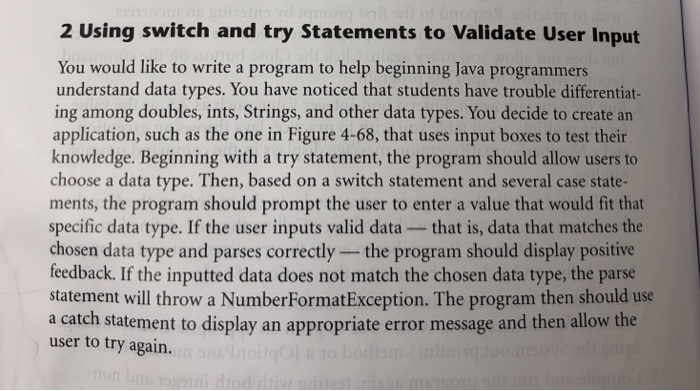
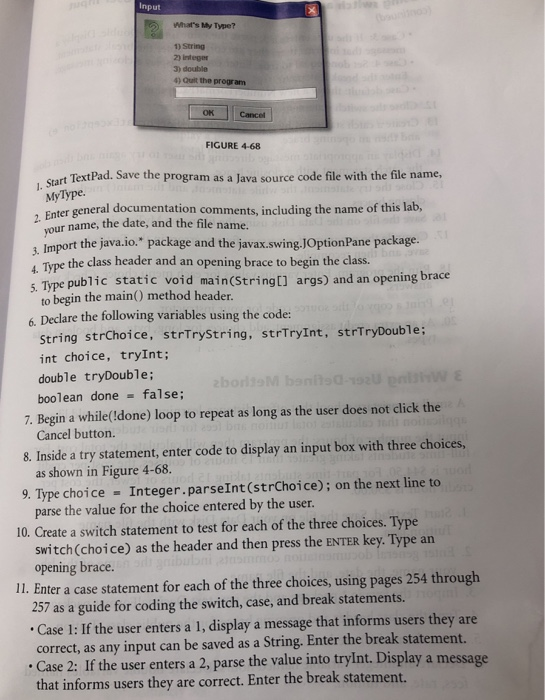
 2 Using switch and try Statements to Validate User Input You would like to write a program to help beginning Java programmers understand data types. You have noticed that students have trouble differentiat- ing among doubles, ints, Strings, and other data types. You decide to create an application, such as the one in Figure 4-68, that uses input boxes to test their knowledge. Beginning with a try statement, the program should allow users to choose a data type. Then, based on a switch statement and several case state- ments, the program should prompt the user to enter a value that would fit that specific data type. If the user inputs valid data- that is, data that matches the chosen data type and parses correctly the program should display positive feedback. If the inputted data does not match the chosen data type, the parse statement will throw a NumberFormatException. The program then should use a catch statement to display an appropriate error message and then allow the user to try again. Input What’s My Type? 1) String 2) Integer 3) double Quit the program OK Cancet FIGURE 4-68 1. Start rt TextPad. Save the program as a Java source code file with the file name, MyType , Enter general documentation comments, including the name of this lab, r name, the date, and the file name. 3, Import the java.io.* package and the javax.swing.JOptionPane package. d. Type the class header and an opening brace to begin the class. 5 Tye public static void main(Stringt] args) and an opening brace to begin the main() method header. 6. Declare the following variables using the code: String strChoice, strTrystring, strTryInt, strTryDouble; int choice, tryInt; double tryDouble; boolean done false; Cancel button. 7. Begin a while(!done) loop to repeat as long as the user does not click the 8. Inside a try statement, enter code to display an input box with three choices, 9. Type choice – Integer.parseInt (strChoice); on the next line to 10. Create a switch statement to test for each of the three choices. Type Il. Enter a case statement for each of the three choices, using pages 254 through as shown in Figure 4-68. parse the value for the choice entered by the user. switch(choice) as the header and then press the ENTER key. Type arn opening brace. 257 as a guide for coding the switch, case, and break statements Case 1: If the user enters a 1, display a message that informs users they are correct, as any input can be saved as a String. Enter the break statement. Case 2: If the user enters a 2, parse the value into trylnt. Display a messa that informs users they are correct. Enter the break statement. ge 2 Using switch and try Statements to Validate User Input continued Case 3: If the user enters a 3, parse the value into tryDouble. Display a message that informs users they are correct. Enter the break statement. Case 4: Set done equal to true. Enter code to display a closing message Enter the break statement .Case default: throw a new NumberFormatException. 12. Close the switch statement with a closing brace. 13. Create a catch statement by typing catch (NumberFormatException e) and then an opening brace. the catch statement with a closing brace. closing braces. 14. Display an appropriate message directing the user to try again and then close 15. Close the try statement, the while statement, and the main) method with 16. Save the file on the Data Disk using the file name MyType.java. 17. Compile the program. If necessary, fix any errors in the TextPad window, save, and then recompile. 18. Run the program. Enter various values for each menu choice. Check your answers. 19. Print a copy of the source code for your instructor. 20. As an extra credit assignment, add choices for long, byte, and boolean data types Show transcribed image text 2 Using switch and try Statements to Validate User Input You would like to write a program to help beginning Java programmers understand data types. You have noticed that students have trouble differentiat- ing among doubles, ints, Strings, and other data types. You decide to create an application, such as the one in Figure 4-68, that uses input boxes to test their knowledge. Beginning with a try statement, the program should allow users to choose a data type. Then, based on a switch statement and several case state- ments, the program should prompt the user to enter a value that would fit that specific data type. If the user inputs valid data- that is, data that matches the chosen data type and parses correctly the program should display positive feedback. If the inputted data does not match the chosen data type, the parse statement will throw a NumberFormatException. The program then should use a catch statement to display an appropriate error message and then allow the user to try again.
Input What’s My Type? 1) String 2) Integer 3) double Quit the program OK Cancet FIGURE 4-68 1. Start rt TextPad. Save the program as a Java source code file with the file name, MyType , Enter general documentation comments, including the name of this lab, r name, the date, and the file name. 3, Import the java.io.* package and the javax.swing.JOptionPane package. d. Type the class header and an opening brace to begin the class. 5 Tye public static void main(Stringt] args) and an opening brace to begin the main() method header. 6. Declare the following variables using the code: String strChoice, strTrystring, strTryInt, strTryDouble; int choice, tryInt; double tryDouble; boolean done false; Cancel button. 7. Begin a while(!done) loop to repeat as long as the user does not click the 8. Inside a try statement, enter code to display an input box with three choices, 9. Type choice – Integer.parseInt (strChoice); on the next line to 10. Create a switch statement to test for each of the three choices. Type Il. Enter a case statement for each of the three choices, using pages 254 through as shown in Figure 4-68. parse the value for the choice entered by the user. switch(choice) as the header and then press the ENTER key. Type arn opening brace. 257 as a guide for coding the switch, case, and break statements Case 1: If the user enters a 1, display a message that informs users they are correct, as any input can be saved as a String. Enter the break statement. Case 2: If the user enters a 2, parse the value into trylnt. Display a messa that informs users they are correct. Enter the break statement. ge
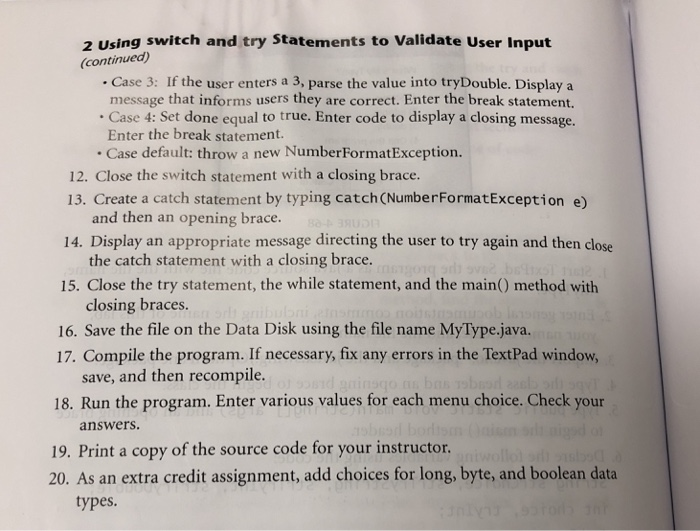
2 Using switch and try Statements to Validate User Input continued Case 3: If the user enters a 3, parse the value into tryDouble. Display a message that informs users they are correct. Enter the break statement. Case 4: Set done equal to true. Enter code to display a closing message Enter the break statement .Case default: throw a new NumberFormatException. 12. Close the switch statement with a closing brace. 13. Create a catch statement by typing catch (NumberFormatException e) and then an opening brace. the catch statement with a closing brace. closing braces. 14. Display an appropriate message directing the user to try again and then close 15. Close the try statement, the while statement, and the main) method with 16. Save the file on the Data Disk using the file name MyType.java. 17. Compile the program. If necessary, fix any errors in the TextPad window, save, and then recompile. 18. Run the program. Enter various values for each menu choice. Check your answers. 19. Print a copy of the source code for your instructor. 20. As an extra credit assignment, add choices for long, byte, and boolean data types
Expert Answer
Answer to 2 Using switch and try Statements to Validate User Input You would like to write a program to help beginning Java progra… . . .
OR