
[Solved]Task 1 Creating Local User Accounts Use Windows 7 10 Create User Account New Member Staff Q37213511
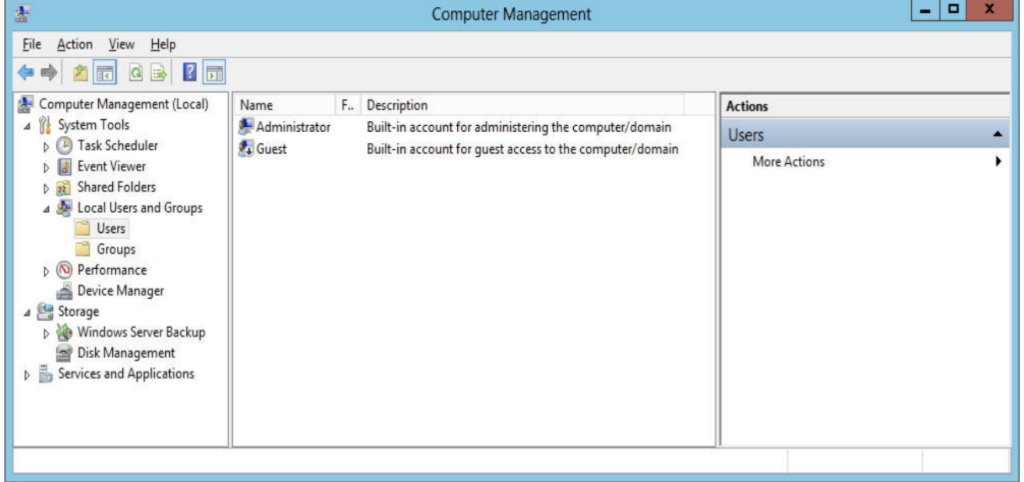
Task 1: Creating Local User Accounts (Use Windows 7,10) Create auser account for a new member of staff called (Any Name). In LocalUsers and GroupsUsers, right-click in the middle pane and thenselect New User. The New User dialog box opens.
==========SHOW SCREEN SHOTS OF THE RESULTS========================
User Name This is the name that the user willenter whenever they log in. We strongly recommend implementing somesort of naming standard. Some use the company employee ID as ausername. Others use the person’s initials (including the middlename) with a number. These more anonymous systems might beappropriate where personal data is deemed sensitive.
Full Name The “Full name” field is just thename of the person who will use the account. You probably don’twant to store those names on servers that will be facing theInternet.
Password Next, you need to set the password.One of the better ways to set a password is to use a passphrase.Read the case study to learn more about passphrases.
User Must Change Password at Next Logon We’veleft the “User must change password at next logon” option enabledfor this example. That does exactly what it says on the tin. Youcan set an easy-tocommunicate password such as “your newpassphrase” and leave this box selected (it’s on by default). Thenew user will be able to log on but must change their password tocomplete the logon process.
User Cannot Change Password You can decide toprevent the account user from being able to change their password.A scenario where you might use this is when you are creating a useraccount that will be used by an application or a service. Settingthis option prevents the program or an attacker of the program frombeing able to change the password.
Password Never Expires “Password never expires”overrides any password expiration policies that may be setelsewhere, such as on the local system or in a group policy. You’lllikely use this option for serviceuser accounts only. You don’twant something like SQL Server shutting down because the serviceuser account’s password wasn’t changed. Organizations withultra-tight security might just have a 100 percent ban on thisoption.
Account Is Disabled “Account is disabled” ispretty self-explanatory. The account will be created, but it cannotbe used until this check box has been deselected. This is what wasdone with the Guest user account. You might do this if you arecreating a large number of users for the future and will enablethem only when the users actually start.
You can also create users via the command line. This is helpfulwhen using the Server Core installation of Windows Server, but youmay also find it’s useful to learn for scripting as well. You canrun the following command to create the local user hdhillon on yourserver: (Use different username)
C:Usersadministrator>net user hdhillonSkyisblue2017 /ADD
The command completed successfully
The syntax of this command is as follows:
net user <user name to create> <password toset> /ADD
That command creates a user on the local computer. It doespretty much nothing else. None of the other options that we’ve justtalked about are turned on or used. If the password is longer than14 characters, you will be informed that the password is longerthan 14 characters, which could have been a problem on legacyWindows systems. You are asked to confirm that you want such a longpassword. If you want to add spaces into your password, you can dothat by surrounding the password with quotation marks. Here’s anexample:
net user hdhillon “This is CIT360 ” /ADD
You can add a few options to this command to completelyre-create what you did in the Computer Management tool:
net user hdhillon Skyisblue2017 /fullname: “harjitdhillon” /comment: “Manager of the server team”/logonpasswordchg:yes /add
That’s a long command. Here’s what the options do:
/fullname This gives the user account a namefor future reference.
/comment This completes the Description fieldin the properties of the user account.
/logonpasswordchg:yes This forces the user tochange their password when they first log into the server. Here aresome of the other options that we covered for ComputerManagement:
/passwordchg This is set to either yes or no tocontrol whether a user can change their own password.
/expires This is set either to a date (in theformat mm/dd/yy[yy]) or NEVER.
/active This either enables or disables theaccount.
You can get more information on other options by typing net helpuser at the command prompt.
Computer Management File Action View Help Computer Management (Local) Name Actions System Tools Administrator Guest Built-in account for administering the computer/domain Built-in account for guest access to the computer/domain Users Task Scheduler More Actions DEvent Viewer D İİI Shared Folders ξ Local Users and Groups Users Groups Performance Device Manager Windows Server Backup Storage Disk Management Services and Applications Show transcribed image text Computer Management File Action View Help Computer Management (Local) Name Actions System Tools Administrator Guest Built-in account for administering the computer/domain Built-in account for guest access to the computer/domain Users Task Scheduler More Actions DEvent Viewer D İİI Shared Folders ξ Local Users and Groups Users Groups Performance Device Manager Windows Server Backup Storage Disk Management Services and Applications
Expert Answer
Answer to Task 1: Creating Local User Accounts (Use Windows 7,10) Create a user account for a new member of staff called (Any Name… . . .
OR